Signing In & Uploading Files
Sign in to your client dashboard and submit compliance documents for review.
Overview
Once your email address has been granted access to a property, you can sign in to the client dashboard to upload compliance documents. This tutorial walks through signing in, navigating the dashboard, and submitting files to the correct property.
Need access first? If the property you want to upload to is not yet available on your dashboard, see the Signing In & Accessing Properties tutorial before continuing.
Signing In
Open the Clients Page
Visit the Clients page on our website and click Sign In to Dashboard in the Dashboard card. The sign-in page opens at dashboard.ajjcs.net.
Sign In
Enter your Username or Email (use the email address that has been given access to your properties) and your Password, then click Sign In. If you don't remember your password, click Forgot Password? under Need Help, and we'll email you instructions to reset it.
Get Oriented on the Dashboard
After signing in you'll land on the Client Dashboard. The quick actions bar at the top links to Upload Files, User Management, Your Profile, and the Support Desk. The sidebar on the left (Dashboard, Upload Files, Review Results, User Management) is on every page.

The quick actions bar at the top of the Client Dashboard.
Uploading Files
Open the Upload Files Page
Click Upload Files in the quick actions bar or the sidebar. The instructions at the top of the page repeat the main rule: only PDF files up to 40 MB are accepted.
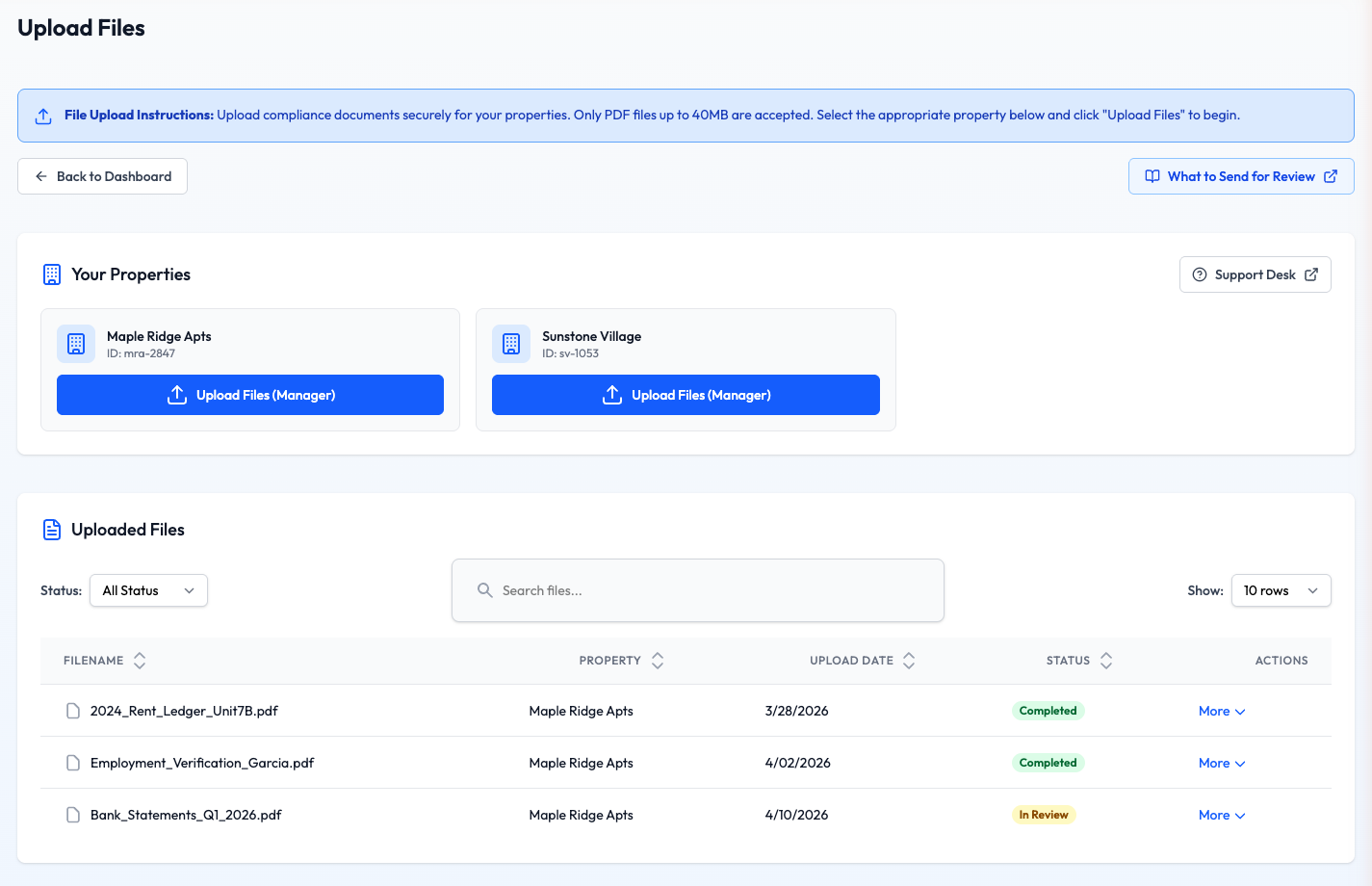
The Upload Files page. Each property you can access has its own upload button.
Choose the Property
In the Your Properties card, find the property and click its upload button. The button shows your role for that property, for example Upload Files (Manager) or Upload Files (Support). If you have access to more than three properties, you'll see a search box and a property list instead: choose the property, then click the upload button below it.
Read-only access? If your role on a property is Read Only, its button reads Upload Restricted (Readonly) and shows a lock. Ask a Manager for the property to give you Support or Manager access if you need to upload files.
Add Your Files
The Upload Files window opens and names the property under Uploading to, so check it's the right one. Drag your PDFs into the box, or click browse files to choose them from your computer. Each file appears in the list: remove one with its ×, or click Add more. Nothing is sent until you start the upload.
Start the Upload
Click Upload (the button shows how many files, for example Upload 3 files). A progress bar tracks each file and the total; keep the tab open until it finishes. A green message, "Successfully uploaded 3 file(s)", confirms we received them. If a file can't be accepted, a red message tells you why. Close the window when you're done, or click Add more to send another batch.
Confirm Your Files Arrived
You'll see them right away. New uploads are added to the Uploaded Files table with a yellow Pending badge. That's your confirmation that the file is in our review queue. The Checking on Files tutorial explains what happens next.
File Requirements
The dashboard enforces a few rules on every upload to keep things moving smoothly:
- PDF files only: no Word documents, spreadsheets, or images.
- Up to 40 MB per file.
- Up to 50 files in a single upload session.
- Descriptive, unique file names help our reviewers find what they need quickly.
Not sure what to send? The What to Send for Review tutorial covers the documents we look for during each type of review.
Tips for a Smooth Upload
Name Files Clearly
- • Include the household or unit name
- • Indicate the document type
- • Add a year if relevant
Protect Your Session
- • Sign out when you're finished
- • Don't share your password
- • Upload from a trusted network
Stable Connection
- • Keep the browser tab open during upload
- • Avoid Wi-Fi drops on large files
- • Retry one file at a time if needed
Add Context
- • Use notes to flag priority files
- • Mention any special circumstances
- • See the Adding Notes to Files tutorial
Troubleshooting
I don't see the property I need to upload to
Confirm you signed in with the exact email that was granted access. If the property still isn't listed, follow the Signing In & Accessing Properties tutorial to request access.
The button says Upload Restricted
An Upload Restricted (Readonly) button with a lock icon means your access to that property is Read Only. Ask a Manager for the property to raise your permission level to Support or Manager, or submit a support ticket for help.
My file was rejected during upload
The most common causes are non-PDF formats and files larger than 40 MB. Save or export your file as a PDF and try again. If the PDF is large, check whether it can be flattened or split into smaller documents.
My upload seems stuck
Keep the tab open and check your internet connection. If the progress bar hasn't moved in several minutes, cancel the upload, refresh the page, and try the same file on its own. Persistent problems with a single file are worth a support ticket.